

Knowledgebase / Domains and Security
How to Password Protect a Directory in cPanel
cPanel Directory Privacy adds a browser login prompt to a selected website folder. It is useful for a staging site, a private preview or a limited set of web documents. Set it up for the correct folder, use HTTPS and test both allowed and denied access before sharing the address.
By ServersNest Editorial Team
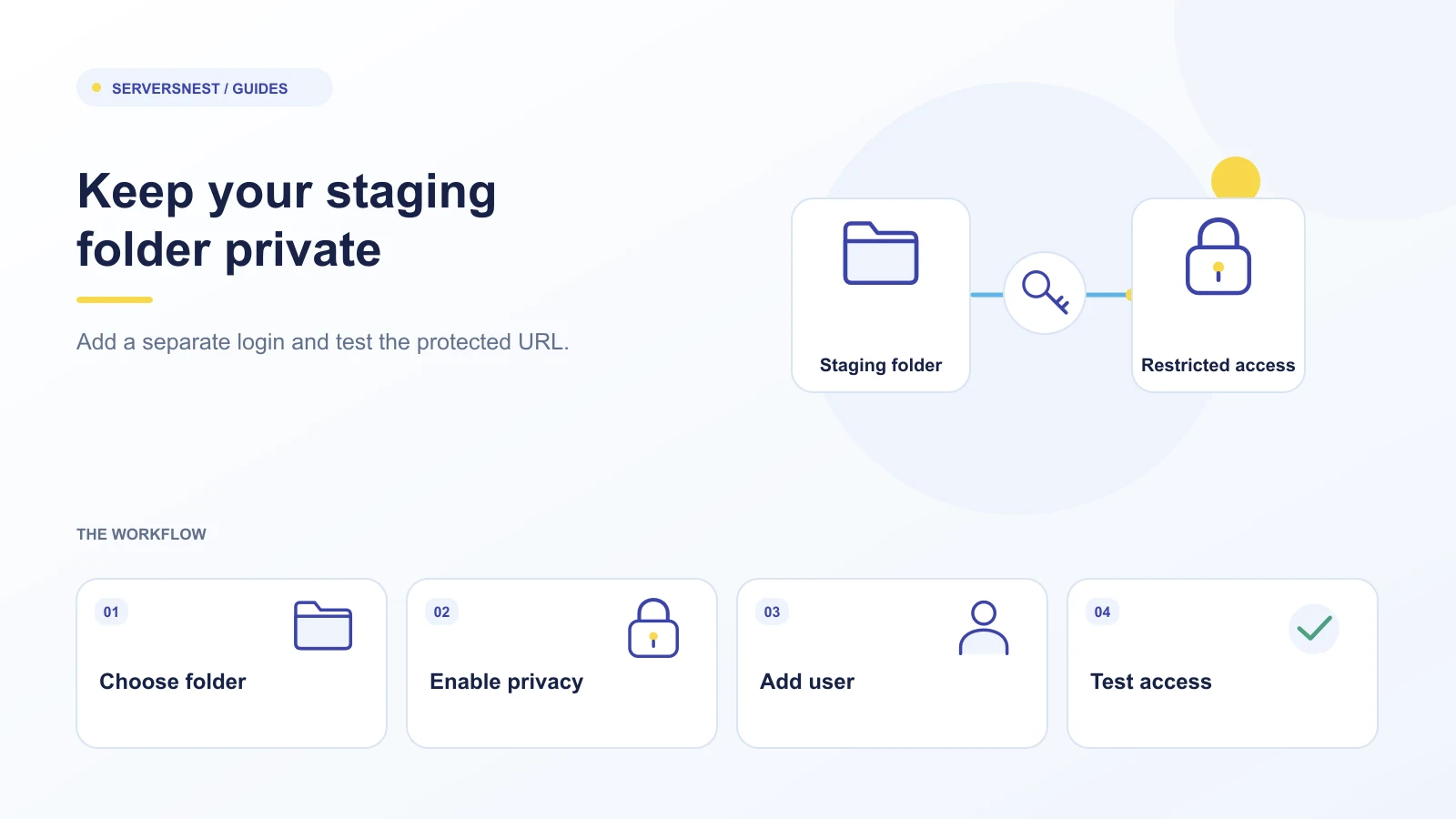
Protect the intended folder, add a dedicated user and verify access in a fresh browser session.
Choose the folder and check the scope
Identify the exact URL you want to protect, such as https://example.com/staging/, and its document root or folder in cPanel. Do not assume every domain uses public_html. Protecting a parent folder also protects its child folders, so choosing the whole live site’s root can block visitors and integrations.
Directory Privacy controls access through the website. It does not remove permissions granted through FTP, SFTP, Web Disk or a local account. It is an additional browser access control, not an alternative to keeping your application patched and its own administrator accounts secure.
Before changing settings, record the current folder and make a private backup of its existing .htaccess file, if present. Use a staging copy when testing a complex application. Check whether external previews, monitoring, payment callbacks or other integrations need to reach the folder.
Enable Directory Privacy and create a user
- Sign in to cPanel and search for Directory Privacy under Files.
- Browse to the intended folder and choose Edit.
- Enable Password protect this directory, enter a simple label such as Private Preview, and save.
- Return to the folder’s settings. Under Create User, enter a dedicated username and a strong, unique password, then save.
- Check that the account appears under Authorized Users.
The folder label is a description for the login prompt; it does not rename your directory. The new password is for this protected area. Avoid reusing your cPanel or WordPress administrator password. If the tool is absent, ask your provider whether it is available for your account.
Use HTTPS and share access carefully
Open the protected address with https:// and confirm that the browser accepts its certificate before entering credentials. Basic HTTP authentication needs TLS to protect credentials in transit. A login popup alone does not establish an encrypted connection.
Create separate access credentials for collaborators where practical, so one person’s access can be removed without distributing a new shared password. Send the address and password using an appropriate private channel. Do not place credentials in a URL, public support comment, screenshot or project README.
If the folder contains downloadable documents, test a direct document URL as well as the index page. Authentication must apply to the file request, not just the page that links to it. Anything already downloaded by an authorized user remains outside the server’s control.
Test the result before using the folder
- Open a new private browsing session and visit the exact protected URL.
- Cancel the login prompt. Confirm that the protected content is not displayed.
- Enter the new directory credentials and confirm the expected page loads.
- Visit a file and a child folder within the protected location.
- Check the main public website in another private session to confirm you did not protect it accidentally.
Browsers can remember HTTP authentication credentials for a session. An ordinary refresh may therefore skip the prompt. Close the private session completely and start a new one when checking denied access. If a CDN previously cached private content while it was public, clear the relevant cached URLs and confirm the protected paths are not being served from that cache.
Troubleshoot repeated prompts and errors
Repeated prompts commonly mean the wrong directory credentials were entered or a resource loads from another protected location. Check which URL the browser is requesting. If an application rewrites requests, a protected folder can interact with those rules; preserve the existing configuration and ask support to review it instead of deleting the entire .htaccess file.
For a 500 error, collect the time and the relevant account error-log entry. For a 403 or 404, confirm the document root and requested path. Do not make all files world-writable as a workaround. Access control and filesystem permissions solve different problems.
For private previews alongside a public website, compare the domain and website allowances in the ServersNest shared hosting plans, then confirm the required staging setup with support.
Remove access or publish the folder
To revoke a collaborator, remove that directory user from Authorized Users. To make the folder public, turn off its password-protection setting and save. Review every file before doing this: remove temporary diagnostics, exports, backup archives and draft material that should remain private.
Password protection prevents unauthenticated visitors from reading the protected content. A robots.txt rule or a noindex tag is not a substitute for access control. When publishing a staging project, check its search visibility and canonical settings separately.
KNOWLEDGEBASE FAQ
Frequently asked questions
Will Directory Privacy change my cPanel password?
No. Create a separate user and password for the protected directory. Keep those credentials distinct from your hosting control panel and application administrator accounts.
Why does the browser no longer ask for a password?
The browser may have cached the credentials for that session. Close all private windows, open a fresh private session and test again before concluding that protection is missing.
Can I protect only one folder instead of my whole website?
Yes. Select the intended folder rather than the site's root. Its child folders inherit protection, so review the folder structure and test nearby public pages.
Does noindex keep private files secure?
No. Search indexing controls do not require a password and do not stop someone with a direct URL from accessing content. Use authentication for material that must remain private.