

Knowledgebase / Domains and Security
How to Give a Developer Safe Hosting Access
A developer may need to edit content, investigate a plugin or upload website files. Give them an individual account suited to that work, with a clear end date. Your billing login, WordPress login and hosting control panel are separate access systems.
By ServersNest Editorial Team
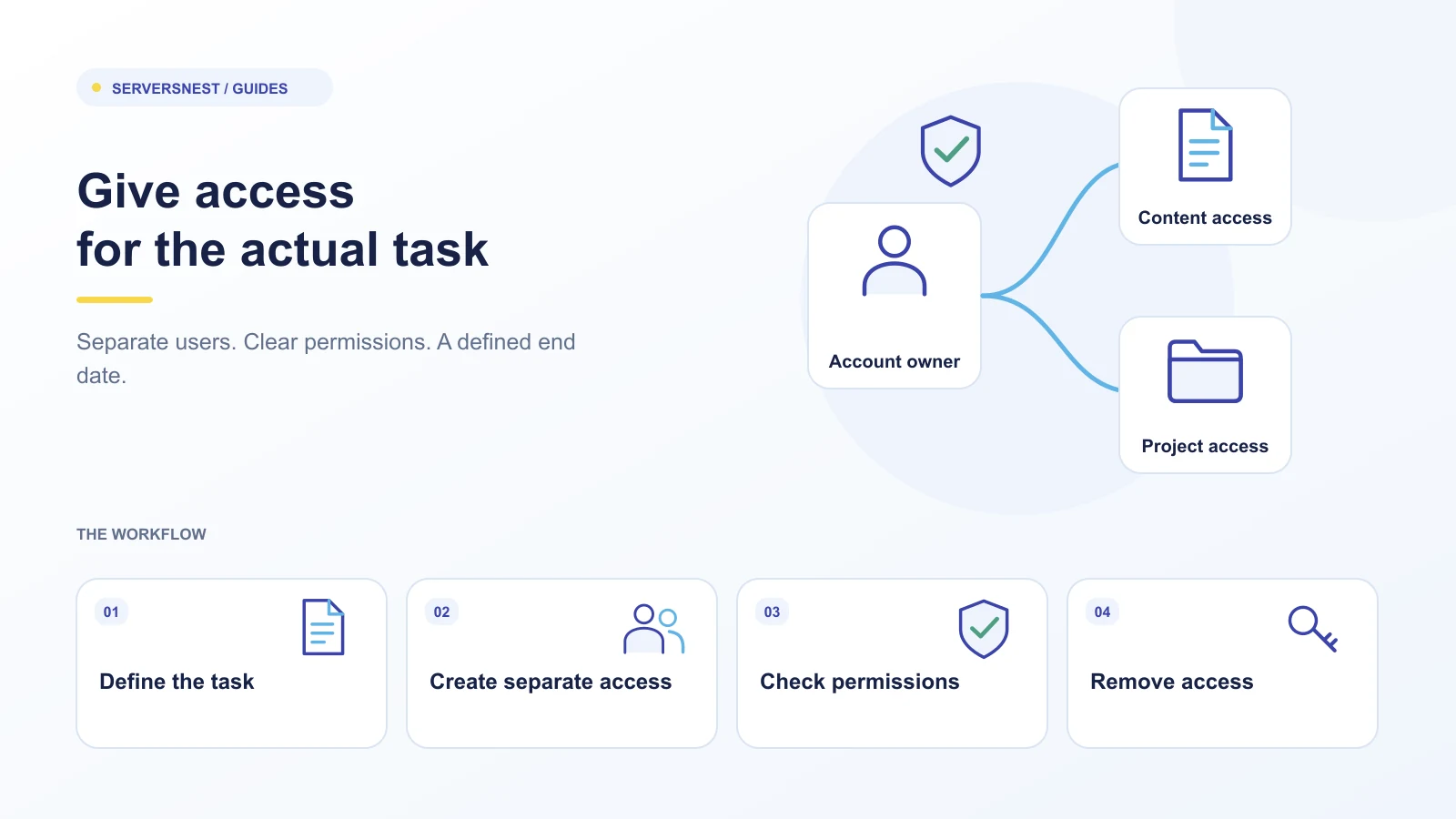
Give each collaborator an individual account with access suited to the work.
Choose access for the actual task
Start by asking what the developer needs to change. A writer usually needs access to content. A developer updating a custom theme may need files. A DNS investigation may only require a screenshot of selected records or a support request. Giving every collaborator the account owner’s login makes later access removal difficult.
Agree on the site, permitted changes, backup and handover before access is created. Use a staging copy for development where practical, particularly when a live site accepts orders or stores personal information. Keep payment settings and customer exports outside the task unless they are specifically needed.
Create a separate WordPress user
- Sign in to the correct WordPress dashboard using your administrator account.
- Open Users → Add New or the equivalent Add User screen.
- Enter the developer’s individual username and email address.
- Choose a suitable role and send the account notification where that option is available.
- Confirm that the developer can sign in with their own account.
WordPress documents the form in its Add New User guide. Use the developer’s address so they can manage their own password; do not give them your password.
An Editor can manage site content but does not normally install plugins. An Administrator has much broader control on a standard single-site installation. Grant that role only when the work requires it, then reduce or remove access after completion. Multisite permissions differ. Review the official WordPress roles and capabilities before choosing.
Limit file access to the project directory
If the account supports additional FTP users, open FTP Accounts in cPanel and create a separate login. Carefully set its directory to the site’s intended folder. That directory and its descendants become the FTP account’s accessible area. Confirm the displayed directory before saving, and use an encrypted connection supported by the server.
Request the correct FTPS hostname and connection settings from support if they are unclear. FTP account credentials do not automatically provide SFTP or SSH access. cPanel describes directory restrictions and connection options in its FTP Accounts documentation.
File access still carries substantial responsibility: a person who can modify an application’s code or read its configuration may be able to access that application’s data. A directory restriction is useful, but it does not turn a live application’s sensitive files into harmless material.
Keep Client Area access separate
A billing portal’s user invitation feature, when present, is specific to that portal and configuration. It should not be assumed to create a restricted cPanel account. Do not follow instructions that expect a User Management → Invite New User menu if your ServersNest Client Area does not show it.
If there is no appropriate sharing option, keep your billing login private and contact support from the account owner’s Client Area. Describe the required task, domain and duration, and ask which supported method gives the developer the necessary access. Do not paste the owner’s password into the ticket.
For a WordPress project, a separate site user is often enough to start. When comparing services, review the actual limits of our WordPress Hosting plans rather than assuming a plan includes every collaboration or server-management feature.
Review the work and remove temporary access
Before signing off, test the affected pages, forms and checkout steps, then ask for a short record of changed files, installed plugins and any scheduled tasks. Keep your own working administrator account throughout the project. WordPress’s security guidance also recommends maintaining reliable backups and limiting unnecessary access.
- Remove or downgrade the temporary WordPress user. If deleting a content author, choose the appropriate content reassignment option.
- Remove the temporary FTP login using the account-only deletion option; do not select an option that also deletes website files.
- Review any new accounts, integration tokens or application passwords created for the task.
- Keep the final backup and handover in a private location you control.
KNOWLEDGEBASE FAQ
Frequently asked questions
Should I send my main cPanel password to a developer?
Use a separate account or task-specific access method where supported. Ask support for guidance if the required work cannot be completed with the options available.
Does a Client Area invitation automatically grant cPanel access?
No. Billing permissions and hosting access are different. The result depends on the portal and its integrations; confirm the intended permissions before inviting anyone.
Is an Editor role enough to install WordPress plugins?
The default Editor role does not normally include plugin installation. A standard single-site Administrator has broader capabilities, so grant it only when necessary.
Will deleting an FTP account delete my website?
cPanel offers different deletion options. Select the account-only option to revoke that login while keeping files; read the confirmation carefully before proceeding.