

Knowledgebase / Domains and Security
How to Redirect HTTP to HTTPS in cPanel
An HTTPS redirect sends visitors from an insecure HTTP address to the secure version of the same website. Install and verify your certificate first, then choose one clear redirect method. This guide covers cPanel, an .htaccess example and the checks that prevent common redirect loops.
By ServersNest Editorial Team
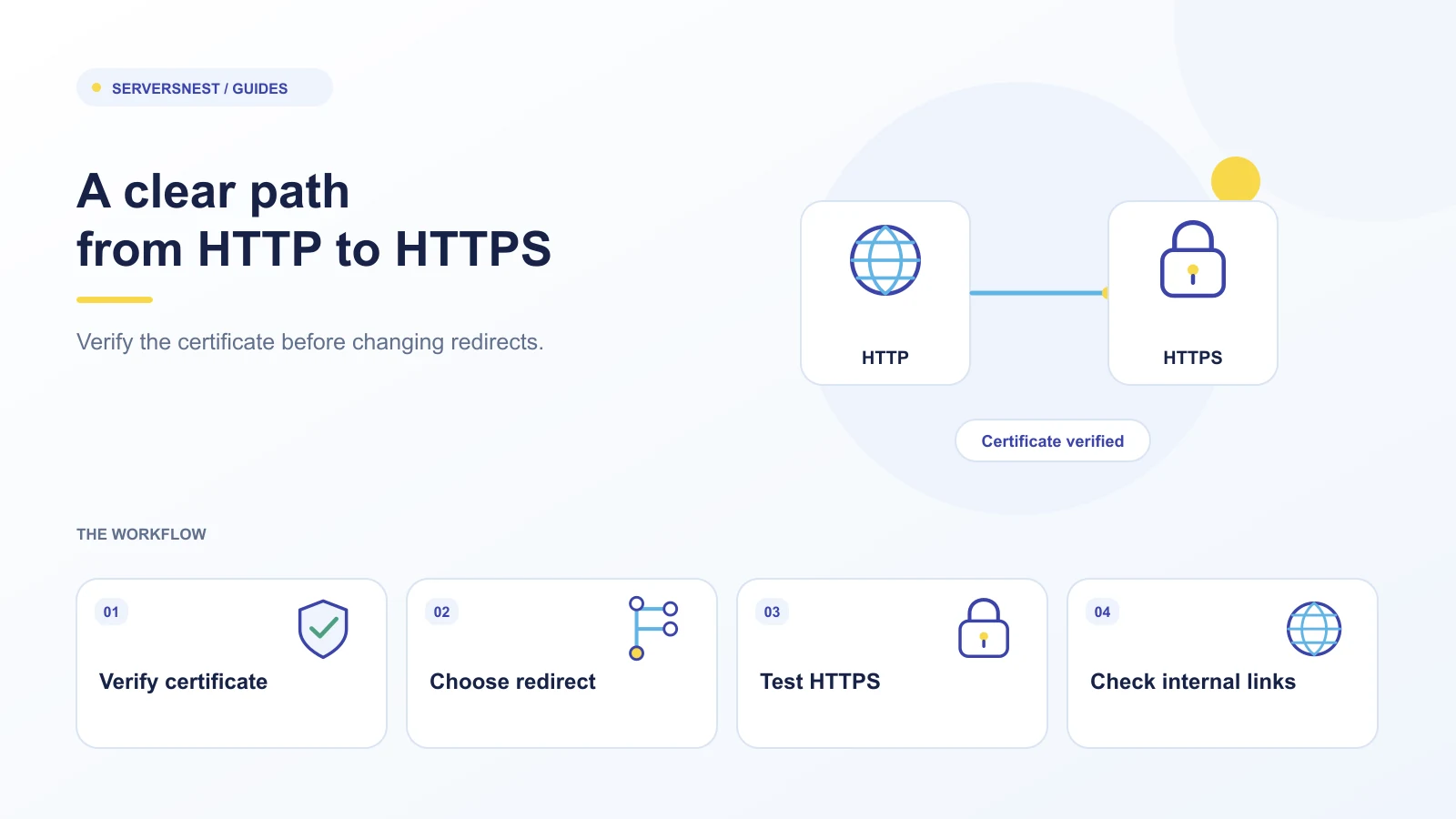
HTTPS setup illustration: verify the certificate, add one redirect and check the final URL.
Check HTTPS before adding a redirect
Open https://example.com/, replacing the example with your domain. The certificate must be valid for the hostname visitors use. If both the bare domain and www are used, check both. Resolve certificate or DNS errors before forcing every visitor onto HTTPS.
Certificates are commonly called SSL certificates, although modern encrypted connections use TLS. A redirect does not issue a certificate or repair a certificate warning. If you are setting up a new site, review the SSL details in your hosting plan and confirm that the certificate has been installed successfully.
Use cPanel Force HTTPS Redirect when available
- Sign in to cPanel and open Domains.
- Find the exact domain you want to secure.
- Enable Force HTTPS Redirect if the control is available.
- Open an HTTP address in a private browser window and confirm that it reaches its HTTPS equivalent.
A missing or disabled switch may indicate a certificate issue or a hosting configuration limitation. Ask support to check the domain instead of adding several competing rules. cPanel explains the Force HTTPS Redirection feature and its certificate prerequisite.
Use an htaccess rule only when it fits your setup
For an Apache-compatible website where the web server itself handles HTTPS, a rule in the domain’s document-root .htaccess file can perform the redirect. Back up that file first. In cPanel File Manager, enable hidden files if necessary, then edit the existing file without removing application rules.
This example uses a fixed destination hostname and a temporary redirect while testing. Replace example.com with your intended canonical hostname. Place it before the WordPress-generated block, outside its begin and end markers.
RewriteEngine On
RewriteCond %{HTTPS} !=on
RewriteRule ^ https://example.com%{REQUEST_URI} [R=302,L]
After testing the home page and several deep links, change R=302 to R=301 for a permanent move. The existing path is retained, so /contact/ should remain /contact/. This example is not a universal proxy configuration. Apache documents HTTPS rewriting and proxy considerations.
Check Cloudflare or another reverse proxy
If a CDN terminates HTTPS before traffic reaches your server, the server may see HTTP even when the visitor used HTTPS. Applying the direct-server example without accounting for that arrangement can create a loop.
Cloudflare Flexible mode connects to the origin over HTTP, which conflicts with an origin that always redirects HTTP to HTTPS. Once a valid origin certificate is configured, use an appropriate encrypted origin mode, preferably Full (strict) when its validation requirements are met. Do not disable certificate checks merely to hide an error. Review Cloudflare’s redirect-loop guidance, or ask your provider to verify trusted proxy handling.
Update WordPress and internal links
For WordPress, confirm that the WordPress Address and Site Address use the intended HTTPS URLs. Take a database backup before changing stored URLs, particularly on multisite or a site installed in a subdirectory. Avoid an unrestricted SQL text replacement because application data may be serialized.
Check images, scripts, stylesheets and embedded content for old HTTP references. These can produce mixed-content warnings even when the main page is secure. Review canonical URLs and sitemap addresses so that your site consistently points visitors and search engines to the preferred HTTPS version. See the WordPress HTTPS guidance.
Test the change and keep a rollback ready
Try the home page, a deep page, a URL with a query string and the administrator login. Check both hostname variants that visitors might enter. Confirm that the final page loads successfully rather than cycling between addresses, and inspect the browser network panel if the path is unclear.
If the site starts looping immediately after your edit, restore the saved file or undo the new toggle. Clear relevant caches after correcting the configuration, then retest in a private window. Keep payment callbacks and other integrations in mind before enabling stricter policies such as HSTS.
KNOWLEDGEBASE FAQ
Frequently asked questions
Does an HTTPS redirect install an SSL certificate?
No. The destination must already serve HTTPS with a valid certificate. Fix certificate and DNS problems before enabling the redirect.
Why does my website show too many redirects?
Common causes include conflicting cPanel, application or CDN rules, or a mismatch between the proxy encryption mode and origin redirects. Undo the latest change and check each layer.
Should I use a 301 or 302 redirect?
A 302 is useful while verifying a new configuration. Once the move is confirmed and intended to be permanent, use 301. Remember that browsers and caches may retain redirect responses.
Why are some images still insecure after the change?
Their stored URLs may still start with HTTP. Update the affected references or use an application-aware migration method after a backup, then check for mixed content again.