

Knowledgebase / cPanel and Backups
How to Move an Addon Domain to Another cPanel Account
Moving an addon domain means moving the website and its dependencies, then directing visitors to the new account. Copying the files alone may leave the database, email or scheduled tasks behind. Prepare and test the destination before changing public DNS.
By ServersNest Editorial Team
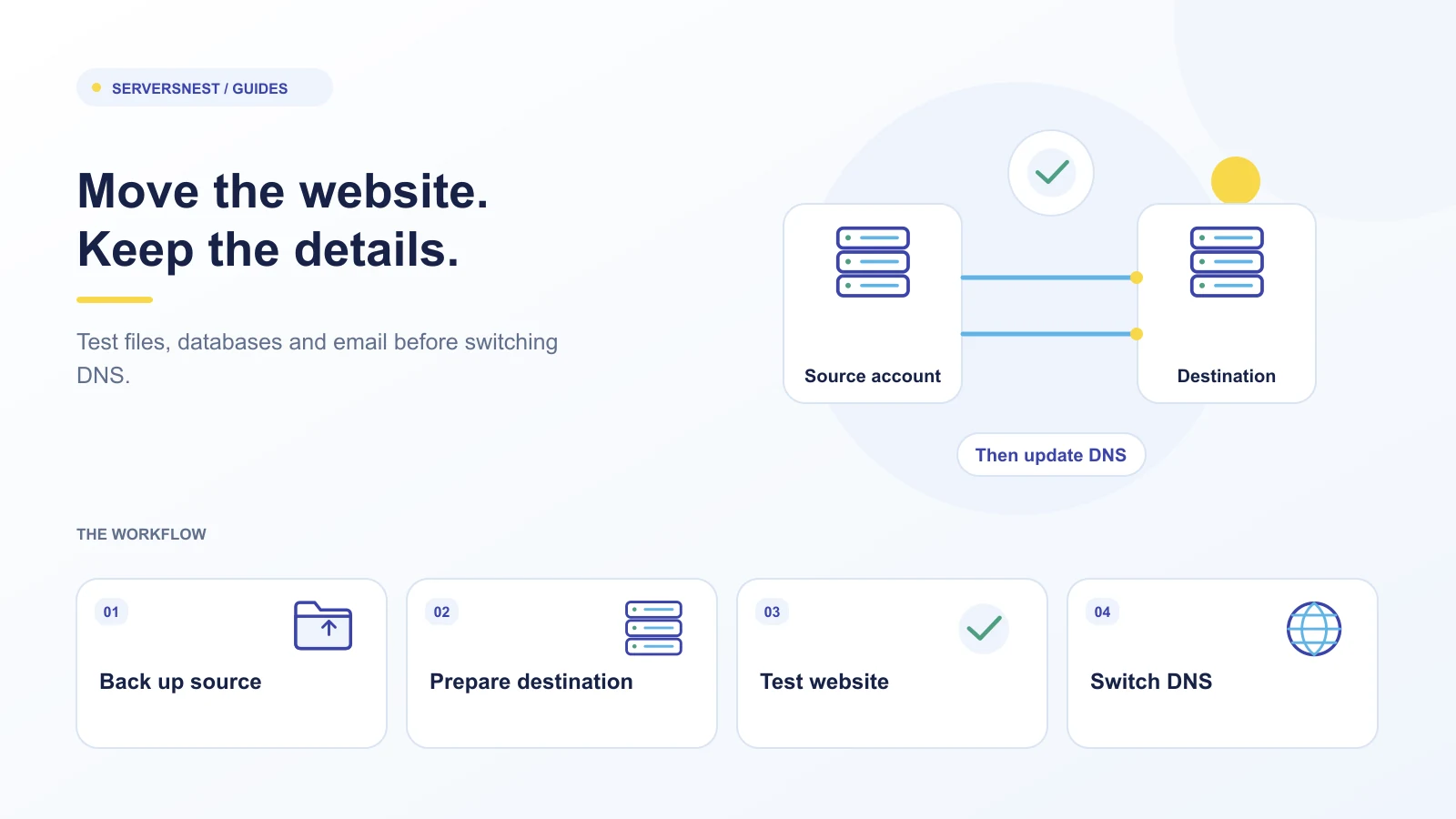
Copy and test the destination first; change DNS after the website and mail plan are ready.
List what belongs to the domain
Record the domain’s current document root, database names, PHP version, scheduled tasks, redirects, mailbox accounts and DNS records. Note any external mail service or CDN. Include subdomains that belong to the project, but avoid transferring unrelated websites from the same hosting account.
Check that the destination plan allows an additional website and has enough available storage for the site, database and temporary backup files. Our Shared Hosting plans list website and storage limits; agencies arranging separate client accounts can review Reseller Hosting.
Arrange a quiet transfer window. For a store or membership site, decide how to capture new orders and uploads between the first copy and the final switch. Keep the source available until you have checked the completed migration.
Back up the files, database and mail plan
- Create a recoverable backup before making changes.
- Download the domain’s website files, including hidden configuration files.
- Export each database used by the website and record which application uses it.
- Save the DNS configuration and plan a separate mailbox transfer if email is moving.
- Check the downloaded archives can be opened and store them privately.
A full account backup may contain more than the addon domain and may require provider assistance to restore. cPanel’s backup documentation distinguishes full and partial backups. A database export and file archive do not automatically recreate mailboxes or DNS settings.
Create the destination domain and database
In the destination cPanel account, open Domains and create the domain using an appropriate, separate document root. Do not share the main domain’s root if this is a different website. The folder does not have to match an old tutorial’s public_html/subfolder example; use the location accepted by your account configuration. See cPanel Domains.
If both accounts are on one server, cPanel may prevent the same domain from belonging to both accounts at once. Ask support to coordinate that move. Do not delete the live domain just to bypass the error.
Create the destination database and user through Database Wizard or Manage My Databases, then grant the application its required permissions. Account prefixes may make the new database name different. cPanel explains the setup in its Database Wizard guide.
Restore the site and test before DNS
Upload and extract the website files into the chosen document root, import the database into the newly created database, and update the application’s database credentials. Check the database hostname with the destination provider. Match the supported PHP version and required extensions, and recreate only the relevant scheduled tasks.
Use a provider-supported preview method or a temporary local hosts-file override to test the real domain against the destination IP. Remove that local override after testing. Check page content, images, login, form submissions and application email. For stores, use the gateway’s test mode without taking a real payment.
Ensure the destination serves a valid certificate before relying on HTTPS. A browser certificate warning is a failed test, not something to ask visitors to bypass. Record what was tested and any remaining issue before proceeding.
Switch DNS and verify the live result
Copy any final database changes and uploads using your agreed transfer window. Change only the DNS records needed for the move. If changing nameservers, first recreate the complete required DNS zone at the new DNS provider, including existing MX and mail-authentication records. A website move does not require moving an external email service.
DNS caches refresh at different times, so requests may reach both servers temporarily. Monitor the destination and check the site from another network. Verify incoming and outgoing email separately. Keep the original backup and source service until the site owner has confirmed the site and mail work correctly.
Remove transfer archives from public directories after verifying the restoration. Retain a private backup and migration notes so a later problem can be investigated without guessing which version was copied.
KNOWLEDGEBASE FAQ
Frequently asked questions
Do I need to change the domain registrar?
Usually not. A hosting move normally involves website data and DNS settings. Domain registration can remain with the existing registrar.
Can I move only one addon domain from an account?
Yes, but you need to identify its files, databases and other dependencies. A full account archive can include unrelated sites, so use a selective migration plan.
Will website files include my email messages?
Do not assume so. Mailboxes, messages and mail settings require their own migration or must continue using the existing email provider.
When should I delete the old hosting copy?
Only after the destination, DNS and email have been verified and you have a usable private backup. Agree the retention window before cancelling the old service.