

Knowledgebase / cPanel and Backups
How to Back Up and Restore Your Website in cPanel
A useful website backup is a copy you can find, download and restore when something goes wrong. This guide explains which cPanel backup to choose, how to save it away from your hosting account and what to check before restoring a live website.
By ServersNest Editorial Team
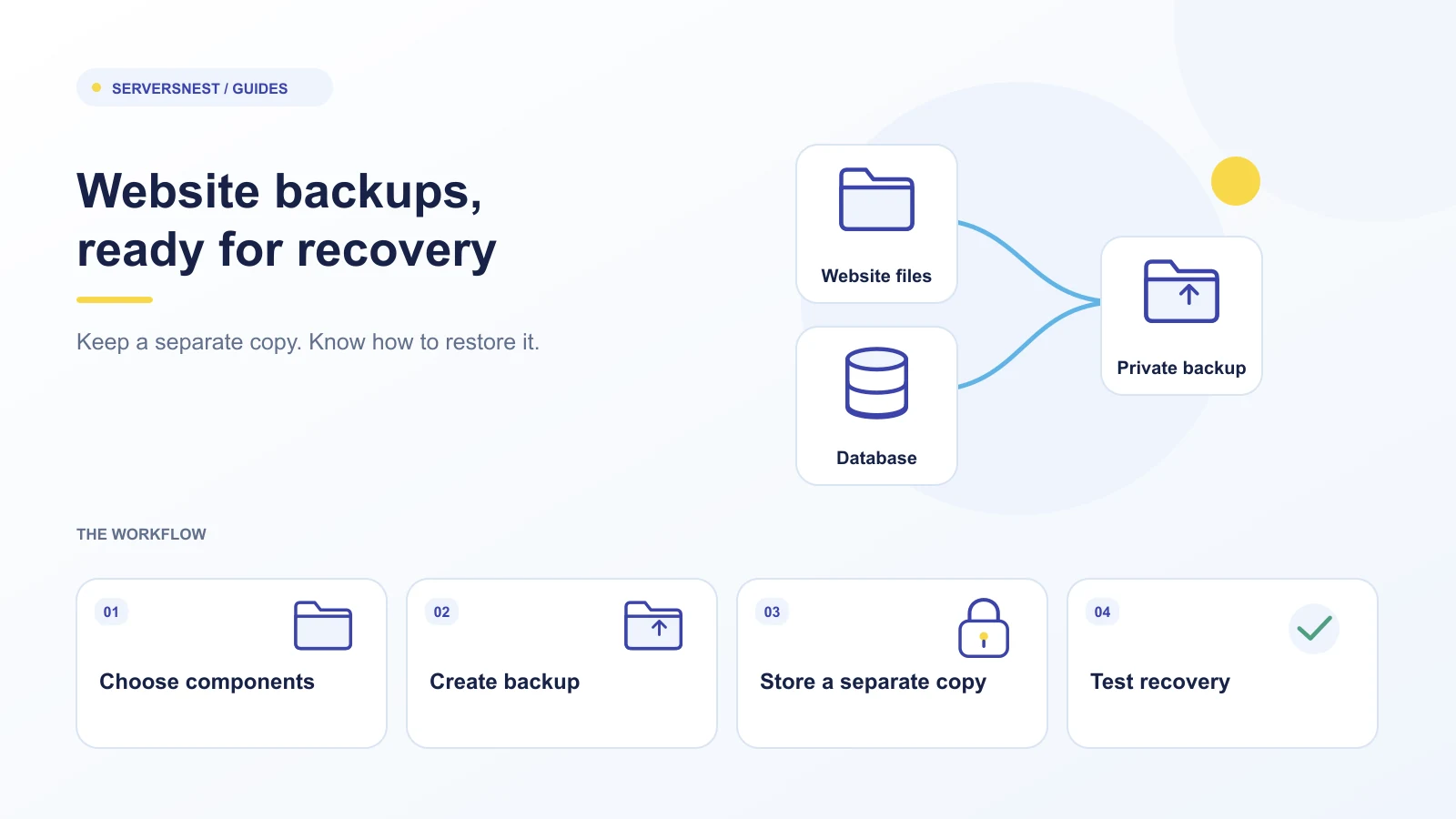
Backup workflow illustration: save the required components, keep an independent copy and test recovery.
Choose the backup that matches your task
A full account backup is intended for moving or recovering a cPanel account. A partial backup covers a selected component, such as the home directory or a database. For a WordPress website, keep both the website files and its database: the files contain uploads, themes and plugins, while the database contains posts, settings and other application data.
The ordinary cPanel interface does not automatically restore a full account archive. That operation requires WHM access or help from your hosting provider. A partial restore is available through cPanel when the relevant feature is enabled. See cPanel’s Backup documentation for the distinction.
Prepare a recovery copy before making changes
Sign in through your trusted hosting login and confirm that you are working in the correct account. Note the domain, the application database and the time of the backup. Check available disk space before generating an archive; a nearly full account may not have room to complete the operation.
For a busy shop or booking website, agree on a maintenance window so that files and database records describe a consistent point in time. Keep a separate record of any orders received after the backup. If you are comparing shared hosting plans, review the listed backup frequency and ask about retention and restoration scope before relying on a scheduled copy.
Create and download a full cPanel backup
- Open Backup in cPanel, then choose Download a Full Account Backup.
- Select Home Directory as the destination for a copy inside your hosting account.
- Enter an email address if you want a completion notification, then choose Generate Backup.
- Return after processing finishes and download the completed archive from the available backups list.
The alternative Backup Wizard groups these choices into a guided flow. Labels may differ slightly with the installed cPanel version. Use the actual completed filename rather than guessing its date or extension; see the Backup Wizard guide.
Download files and database backups separately
In Backup or Backup Wizard, select the home directory when you need a file backup. Download the application’s database separately using its database name. Database exports and home-directory archives have different formats; do not rename one to make it look like another.
Store the downloads in a clearly named folder, for example the domain followed by the backup date. Check that the files are present and have a plausible size. For important sites, test restoration on an isolated staging copy. A successful download alone does not prove that the application can be recovered.
Restore only the component you intend to replace
- Make a fresh recovery copy of the current site, even if it is partly broken.
- Identify the backup date and confirm the account, document root and database it belongs to.
- Open the appropriate partial restoration option in cPanel, choose the matching backup file and upload it.
- Review completion messages before reopening the website.
A restore can replace newer content. If a database export is too large for the available upload limit, ask support for an appropriate import method rather than repeatedly uploading it. For a complete account restore, send the provider the archive details and the exact account to recover; WHM has separate account restoration controls.
Check the recovered site and protect your copies
Open the home page, a content page and the administrator login. Verify recent images, forms and important database records. If files were restored without the corresponding database, check application configuration and version compatibility before assuming the restore is complete.
Backups can contain private messages, customer information and credentials. Keep them outside publicly accessible website folders and store an additional protected copy away from the hosting server. After verifying the downloaded copy, review whether a large temporary archive still needs to occupy your account storage. Never delete your only known recovery copy.
KNOWLEDGEBASE FAQ
Frequently asked questions
Can I restore a full cPanel backup myself?
Not through the normal cPanel Backup interface. A full account restoration requires suitable WHM privileges or assistance from the hosting provider. Partial file and database restores may be available in cPanel.
Does a home-directory backup include my WordPress database?
Treat files and databases as separate backup components. Download the WordPress database as well as its files, or use a full account backup appropriate to your recovery plan.
Why did my backup fail?
Insufficient account space, resource limits or an interrupted job may prevent completion. Check the displayed error and available space, then contact support with the backup time and account details.
How often should I download a backup?
Choose a schedule based on how much new content you can afford to lose. Also create a recovery copy before updates, migrations or substantial configuration changes, and test that it can be restored.