

Knowledgebase / Linux and Server Management
Essential Linux Commands for Hosting and Website Troubleshooting
A few Linux commands can help you find a website file, read an error log and explain a problem clearly to support. Start with commands that inspect information, then make changes only when you understand the target. This guide uses examples inside your own hosting account; SSH availability depends on your service.
By ServersNest Editorial Team
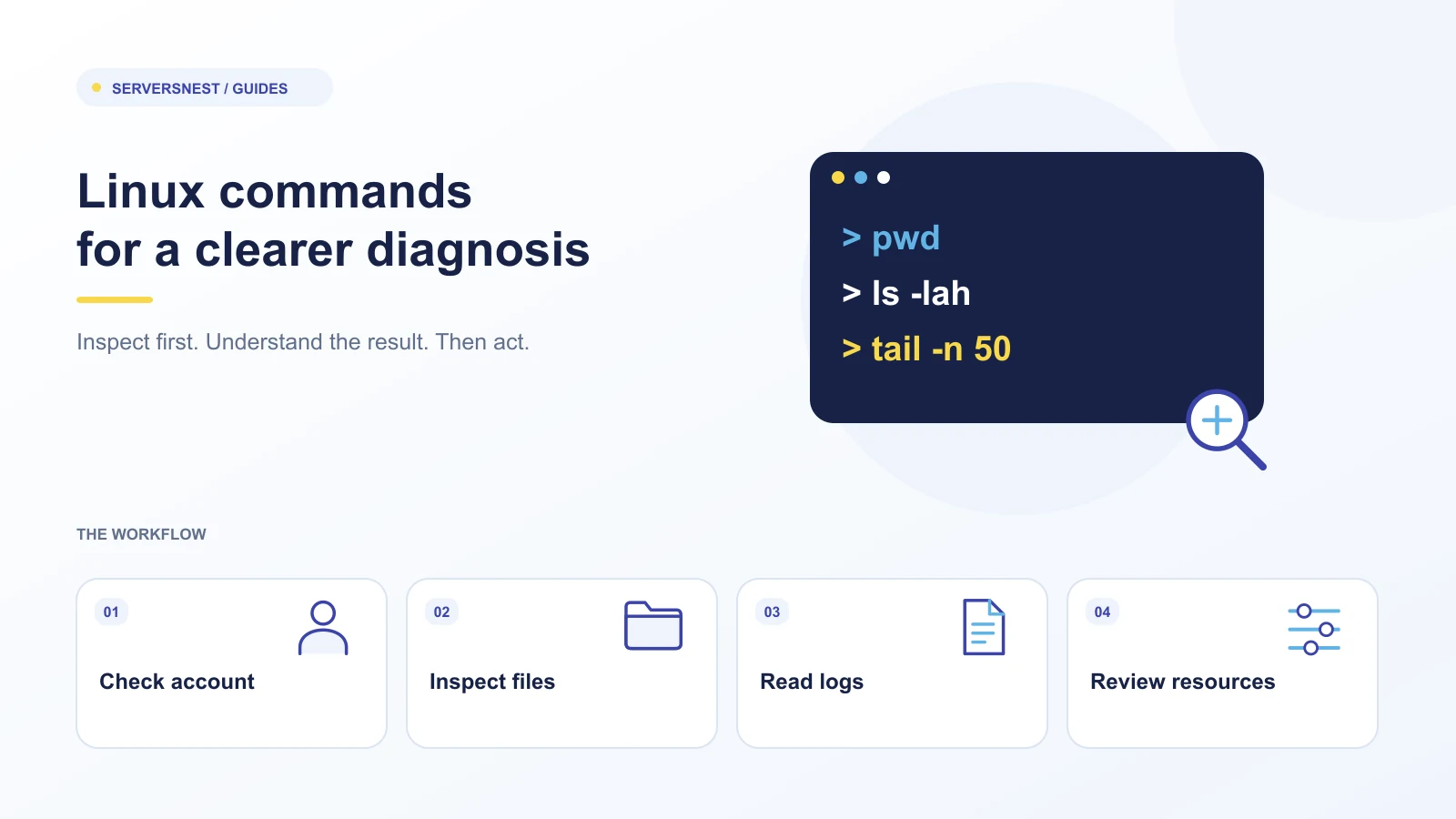
Start with inspection commands and collect evidence before changing a live hosting account.
Before you open a terminal
Use the SSH address, port and username supplied for your account. Verify the server fingerprint through a trusted channel when connecting for the first time. Work as your own user rather than root, and keep a current backup before editing production files. Never paste a command just because it appears in an error message or an unfamiliar website.
Examples below assume a Linux shell with common GNU utilities. Paths and available commands vary between servers. Replace example.log with a real file you are allowed to read. Run one command at a time, inspect its output, and stop if the location or account differs from what you expect.
If your application needs operating system control beyond a shared hosting account, compare the published resources and management scope of our Cloud VPS hosting plans. For help maintaining the operating system and services, review ServersNest server management services before choosing who will administer the server.
Find your location and inspect files
pwd
whoami
ls -lah
cd "$HOME/public_html"
pwd
pwd prints the current directory; whoami identifies the current account. ls -lah lists files with details, readable sizes and hidden entries such as .htaccess. The cd example changes to a common cPanel website folder. Other domains can use different document roots, so verify the folder in your control panel.
To locate a known file within that folder, use a limited search rather than searching the entire server:
find . -maxdepth 3 -type f -name 'error_log'The quotes prevent the shell from interpreting the filename pattern early. A permission error does not mean you should add sudo; first check whether the file belongs to your account.
Read logs without changing them
head -n 10 example.log
tail -n 50 example.log
less example.log
grep -nFi -- 'error' example.log
head shows the beginning and tail shows the end. Both default to ten lines when a line count is omitted. Use less for a long file and press q to exit. The grep example finds the literal word fragment error, ignores letter case and includes line numbers; it does not edit the log.
To watch new entries while reproducing a problem, run tail -f example.log, then press Ctrl + C to stop watching. Keep the relevant time, URL and error text when reporting a fault. Remove passwords, session tokens, customer details and other private values before sharing any output.
Make deliberate file changes
Create a separate practice folder outside your website’s public directory before learning file operations. Keep backups of configuration files outside the public web root, because a renamed configuration file can still reveal secrets if it becomes downloadable.
mkdir -p "$HOME/private-notes"
touch "$HOME/private-notes/checklist.txt"
cp -i "$HOME/private-notes/checklist.txt" "$HOME/private-notes/checklist-copy.txt"
mv -i "$HOME/private-notes/checklist-copy.txt" "$HOME/private-notes/review.txt"
mkdir creates a directory. touch creates a missing empty file or updates the timestamps of an existing one. cp copies and mv moves or renames. Here -i requests confirmation before overwriting an existing destination. Inspect both paths first; an overwrite prompt is an extra check, not a substitute for a backup.
Collect a useful server snapshot
uptime
df -h
ps -u "$(whoami)" -o pid,etime,comm
uptime reports time running and load averages for one, five and fifteen minutes. Load is not a CPU percentage. df -h reports filesystem usage; on shared hosting, the account’s quota in cPanel is a different limit. The ps command lists your processes with their IDs, elapsed time and command names.
A single snapshot cannot prove why a site is slow. Compare observations during normal operation and during the problem, then check the application log. Do not kill processes or restart services simply because a number is high. If you need a server environment for administration tasks, review the resources and management scope of the ServersNest VPS plans.
Check syntax and keep original files intact
Use man command or command --help to check the options installed on your server. The command for repeated lines is uniq, not unique; it only collapses adjacent repeats. sort -u example.txt prints unique sorted lines without modifying the input file. Avoid redirecting output back to the same input filename, which can erase it before processing begins.
KNOWLEDGEBASE FAQ
Frequently asked questions
Do I need root access for these Linux commands?
Most examples work with your own files and account. SSH must be enabled for your service. Server-wide logs and administration tasks may require an administrator; do not escalate privileges just to bypass a permission error.
Why does a command say command not found?
The utility might not be installed or available in your PATH. Check the spelling and your server documentation, then ask support if necessary. Do not download a random replacement script.
Can tail or grep damage a log file?
The reading examples shown here do not modify their input files. Adding output redirection, deletion options or other commands changes their behavior, so review the complete command before running it.
Does high load always mean the server needs more RAM?
No. Load can reflect CPU demand or processes waiting for input/output. Investigate trends, resource limits and application logs before deciding whether code changes or a different hosting plan are needed.