

Knowledgebase / Linux and Server Management
How to Modify a cPanel Account in WHM
WHM's Modify an Account screen changes settings for an existing cPanel account. The important first step is deciding whether the change belongs to one account or to a hosting package shared by several accounts. Record the current values, select the correct customer and verify the affected services after saving.
By ServersNest Editorial Team
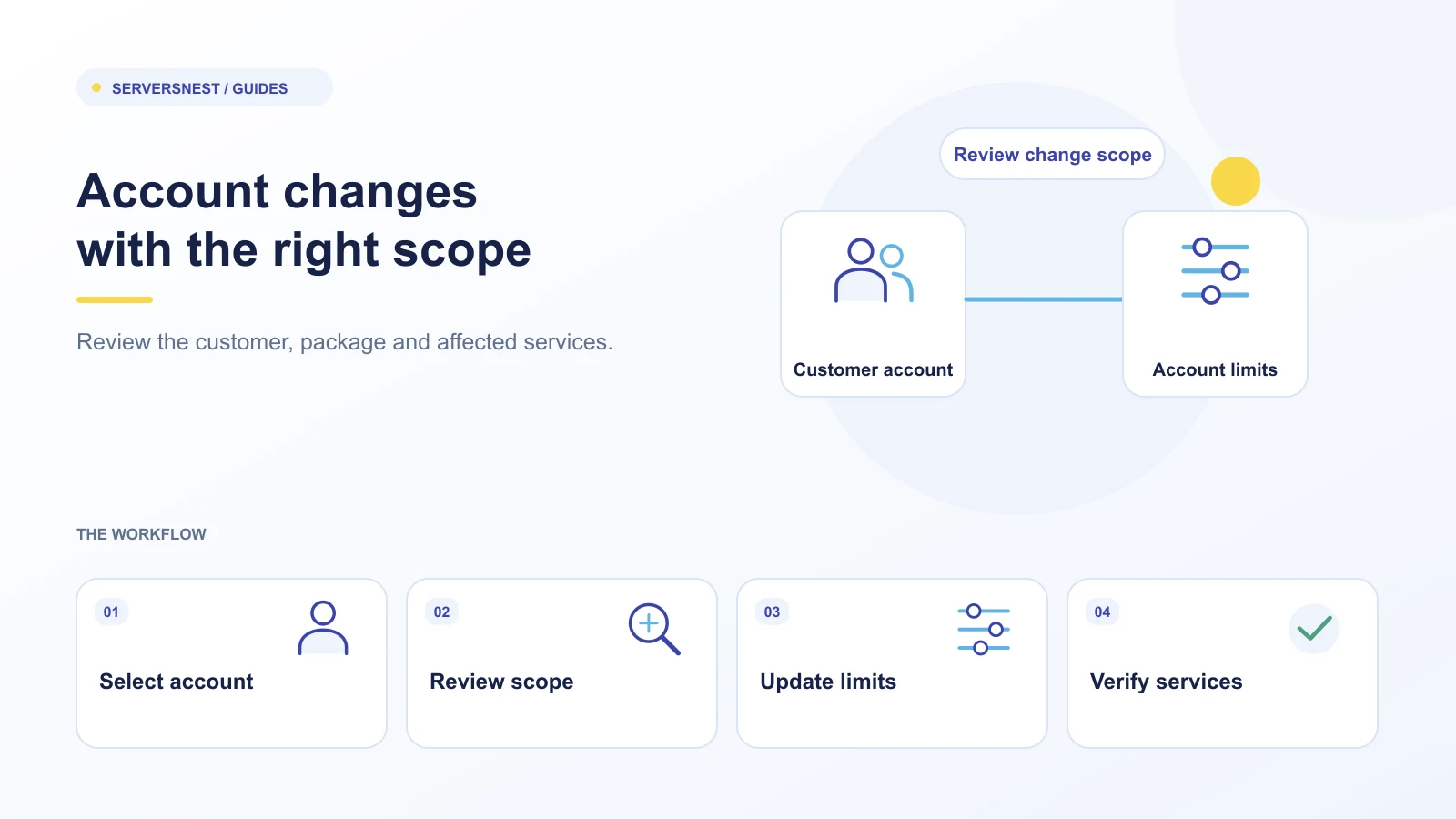
Confirm whether the change applies to one customer or a shared package before saving.
Check access and prepare the change
This guide is for authorized server administrators and resellers. Your provider determines which WHM tools and privileges a reseller can use. If a field is missing or read-only, request the change through the appropriate administrator instead of trying to bypass the restriction.
Identify the customer’s primary domain, cPanel username, current package and current resource usage. Write down the setting you intend to change and its previous value. Take a recoverable account backup before changes to account identity or other settings that could affect website and email access.
For a customer-facing change, arrange a suitable time and identify who will test the result. Keep billing entitlements and the server configuration consistent. Raising a quota in WHM does not automatically update an order, invoice or product description in a separate billing platform.
Decide between a single account and a shared package
Use Modify an Account for supported account-specific settings. If the customer is moving to an existing plan, use Upgrade/Downgrade an Account to select its package. Use Edit a Package only when you intend to change the package itself; its changes can apply to accounts using that package.
For example, increasing storage for one customer is different from increasing the default storage for every customer on the same package. Review the package name and its assigned accounts before editing a shared definition. A clearly named package makes future provisioning easier to audit.
If a downgrade would place a customer above a new limit, resolve the usage or agree on the correct plan before applying it. Account disk quota and server-wide free disk space are separate constraints, and neither should be treated as unlimited by assumption.
Open the account and edit the intended fields
- Sign in to WHM through your trusted administrator address.
- Search for Modify an Account under Account Functions.
- Select the account by checking both its username and domain, then choose Modify.
- Change only the required settings. Review the units for quotas and bandwidth.
- Choose Save and read the confirmation or any conflict-resolution message before continuing.
Available fields may include contact information, resource limits and provider-controlled privileges. If WHM reports a package conflict, select the resolution that matches your intended scope. Do not update a shared package merely to dismiss the prompt.
Handle domain, username and privilege changes carefully
A primary-domain or username change needs more planning than a quota adjustment. Existing integrations may store account names, filesystem paths, FTP details, mail addresses or database credentials. Record the dependencies first and have a tested way to restore service if an application still expects the old values.
WHM can update server-side records when an account changes, but DNS hosted elsewhere and a domain’s registrar settings are separate. Confirm which DNS provider is authoritative before assuming the public website or mail routing has changed.
Enable only the privileges the customer actually needs. Shell access, reseller privileges and CGI settings are not routine troubleshooting switches. Keep mail-authentication settings such as SPF and DKIM aligned with the systems that really send email for the domain; turning off an authentication mechanism is not a general solution to delivery problems.
Verify the saved result and the customer experience
- Reopen the account in WHM and confirm the intended values and package assignment.
- Sign in to the customer’s cPanel through your authorized access method and check the visible limits.
- Visit the website over HTTPS and test a representative application action.
- For changes involving domains or email, verify the expected DNS records and conduct an authorized mail test.
- Check account error messages and background jobs that depend on paths or credentials.
- Record the date, previous values, new values and verification result.
Keep the backup until you are satisfied that the relevant services work. If an unexpected issue appears, stop making unrelated changes. Use the recorded settings and logs to decide whether a narrow rollback or administrator assistance is appropriate.
Keep reseller allocations consistent
Review the total resources assigned across customer accounts, not just the account being edited. Compare them with the capacity and policy of your reseller service. Maintain a consistent package naming scheme so the WHM package used for provisioning matches the package customers purchase.
When planning a new customer offering, use the published allowances in the ServersNest reseller hosting plans as the starting point. Confirm any additional privileges or custom limits before advertising them. A careful account change should be easy for the next administrator to understand and reproduce.
KNOWLEDGEBASE FAQ
Frequently asked questions
Why can I not see Modify an Account in WHM?
The server owner controls the WHM tools available to resellers. Ask your provider whether your role has the required permission or whether an administrator must perform the change.
Does editing a package change other customers?
It can affect accounts assigned to that package. Use an account-specific change for an individual exception, or an existing package upgrade when the customer is moving plans. Review the intended scope before saving.
Will changing a WHM quota change the customer's invoice?
Not necessarily. WHM and the billing platform manage different parts of the service. Check that the customer's purchased plan and server entitlement remain consistent.
Can I change the primary domain like a contact email?
A primary-domain change has broader consequences for website, mail and integration settings. Back up the account, record dependencies and verify DNS and services afterward. Ask an administrator to help if the scope is unclear.